---
title: Render Flutter Widgets
description: User renderFlutterWidget to render Flutter Widgets to the Native Widgets
---
# Render Flutter Widgets
In some cases, you may not want to rewrite UI code in the native frameworks for your widgets. This works by generating a png file of the Flutter widget and save it to a shared container between your Flutter app and the home screen widget.
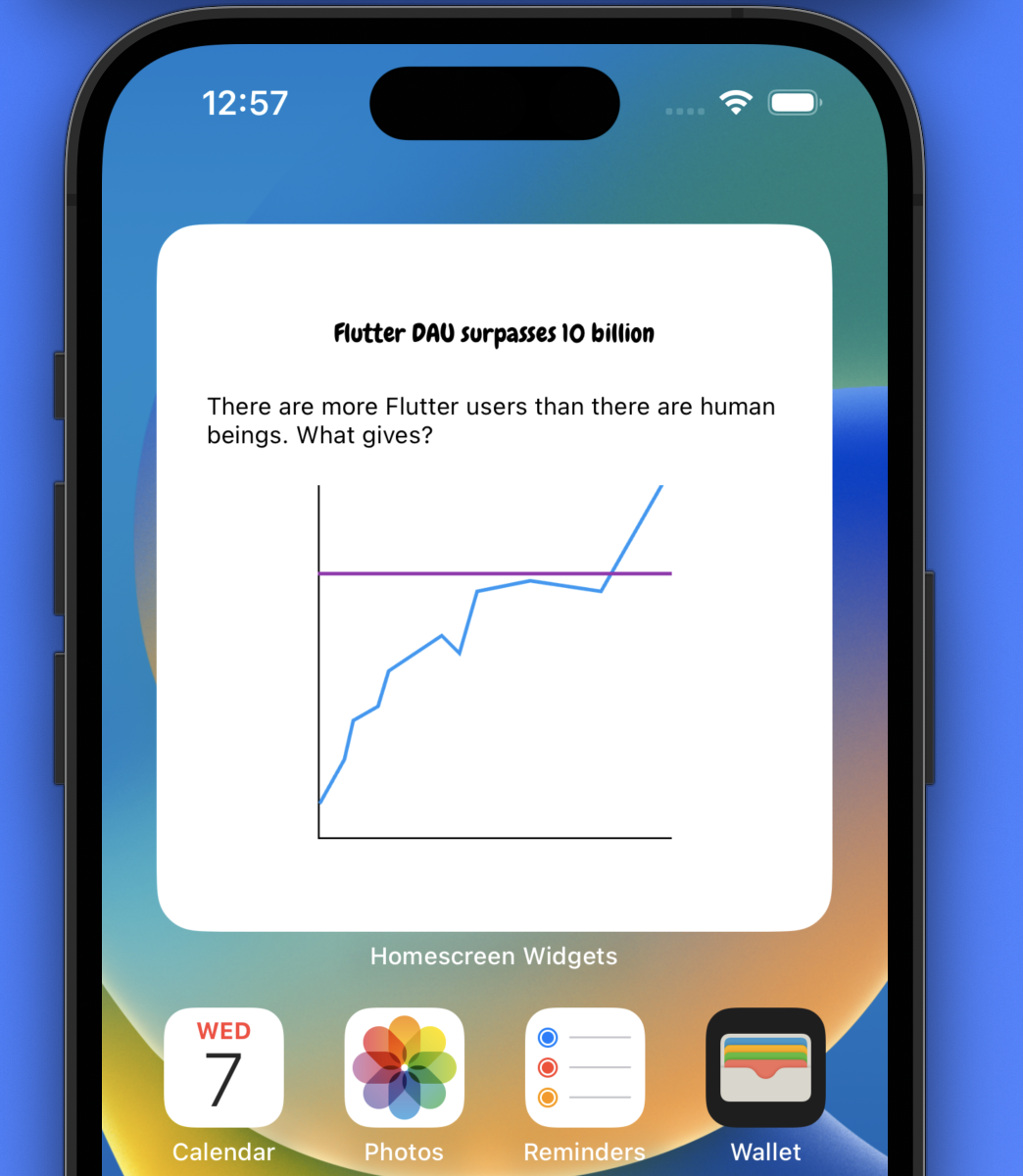 Due to a limitation in `dart:ui` this method does not work when the App is fully in the background. In those cases you should try to build the UI natively.
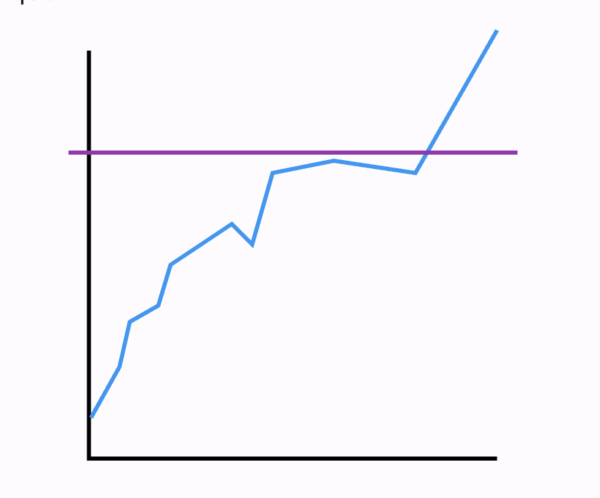
For example, say you have a chart in your Flutter app configured with `CustomPaint`:
```dart
class LineChart extends StatelessWidget {
const LineChart({
super.key,
});
@override
Widget build(BuildContext context) {
return CustomPaint(
painter: LineChartPainter(),
child: const SizedBox(
height: 200,
width: 200,
),
);
}
}
```
Due to a limitation in `dart:ui` this method does not work when the App is fully in the background. In those cases you should try to build the UI natively.
For example, say you have a chart in your Flutter app configured with `CustomPaint`:
```dart
class LineChart extends StatelessWidget {
const LineChart({
super.key,
});
@override
Widget build(BuildContext context) {
return CustomPaint(
painter: LineChartPainter(),
child: const SizedBox(
height: 200,
width: 200,
),
);
}
}
```
 ## Flutter
To render a Flutter widget to an image, use the `renderFlutterWidget` method:
```dart
var path = await HomeWidget.renderFlutterWidget(
const LineChart(),
key: 'lineChart',
logicalSize: const Size(400, 400),
);
```
- `LineChart()` is the widget that will be rendered as an image.
- `key` is the key in the key/value storage on the device that stores the path of the file for easy retrieval on the native side
Under the hood this uses the same file storage and key→path behavior as [`saveFile`](/features/save-files) (PNG extension). For other file types, arbitrary bytes, or saving an [`ImageProvider`](https://api.flutter.dev/flutter/painting/ImageProvider-class.html) without building a widget tree, see [Save files and images](/features/save-files).
## iOS
To retrieve the image and display it in a widget, you can use the following SwiftUI code:
1. In your `TimelineEntry` struct add a property to retrieve the path:
```swift
struct MyEntry: TimelineEntry {
…
let lineChartPath: String
}
```
2. Get the path from the `UserDefaults` in `getSnapshot`:
```swift
func getSnapshot(
...
let lineChartPath = userDefaults?.string(forKey: "lineChart") ?? "No screenshot available"
```
3. Create a `View` to display the chart and resize the image based on the `displaySize` of the widget:
```swift
struct WidgetEntryView : View {
…
var ChartImage: some View {
if let uiImage = UIImage(contentsOfFile: entry.lineChartPath) {
let image = Image(uiImage: uiImage)
.resizable()
.frame(width: entry.displaySize.height*0.5, height: entry.displaySize.height*0.5, alignment: .center)
return AnyView(image)
}
print("The image file could not be loaded")
return AnyView(EmptyView())
}
…
}
```
4. Display the chart in the body of the widget's `View`:
```swift
VStack {
Text(entry.title)
Text(entry.description)
ChartImage
}
```
## Android
On Android use the following code in your Glance Widget to display the Screenshot of the Flutter Widget
```kotlin
// Access data
val data = currentState.preferences
// Get Path
val imagePath = data.getString("lineChart", null)
// Add Image to Compose Tree
imagePath?.let {
val bitmap = BitmapFactory.decodeFile(it)
Image(androidx.glance.ImageProvider(bitmap), null)
}
```
## Flutter
To render a Flutter widget to an image, use the `renderFlutterWidget` method:
```dart
var path = await HomeWidget.renderFlutterWidget(
const LineChart(),
key: 'lineChart',
logicalSize: const Size(400, 400),
);
```
- `LineChart()` is the widget that will be rendered as an image.
- `key` is the key in the key/value storage on the device that stores the path of the file for easy retrieval on the native side
Under the hood this uses the same file storage and key→path behavior as [`saveFile`](/features/save-files) (PNG extension). For other file types, arbitrary bytes, or saving an [`ImageProvider`](https://api.flutter.dev/flutter/painting/ImageProvider-class.html) without building a widget tree, see [Save files and images](/features/save-files).
## iOS
To retrieve the image and display it in a widget, you can use the following SwiftUI code:
1. In your `TimelineEntry` struct add a property to retrieve the path:
```swift
struct MyEntry: TimelineEntry {
…
let lineChartPath: String
}
```
2. Get the path from the `UserDefaults` in `getSnapshot`:
```swift
func getSnapshot(
...
let lineChartPath = userDefaults?.string(forKey: "lineChart") ?? "No screenshot available"
```
3. Create a `View` to display the chart and resize the image based on the `displaySize` of the widget:
```swift
struct WidgetEntryView : View {
…
var ChartImage: some View {
if let uiImage = UIImage(contentsOfFile: entry.lineChartPath) {
let image = Image(uiImage: uiImage)
.resizable()
.frame(width: entry.displaySize.height*0.5, height: entry.displaySize.height*0.5, alignment: .center)
return AnyView(image)
}
print("The image file could not be loaded")
return AnyView(EmptyView())
}
…
}
```
4. Display the chart in the body of the widget's `View`:
```swift
VStack {
Text(entry.title)
Text(entry.description)
ChartImage
}
```
## Android
On Android use the following code in your Glance Widget to display the Screenshot of the Flutter Widget
```kotlin
// Access data
val data = currentState.preferences
// Get Path
val imagePath = data.getString("lineChart", null)
// Add Image to Compose Tree
imagePath?.let {
val bitmap = BitmapFactory.decodeFile(it)
Image(androidx.glance.ImageProvider(bitmap), null)
}
```