---
title: Interactive Widgets
description: Build Interactive Widgets that call Flutter Code from Native Widgets
---
# Interactive Widgets
Android and iOS (starting with iOS 17) allow widgets to have interactive Elements like Buttons.
Using home_widget you can register Dart Callbacks that get invoked from the Native Widgets so you only have to write that logic once.
 ## Flutter Setup
1. Write a **static** function that takes a Uri as an argument. This will get called when a user clicks on the View
```dart
@pragma("vm:entry-point")
FutureOr backgroundCallback(Uri? data) async {
// do something with data
...
}
```
`@pragma('vm:entry-point')` must be placed above the `callback` function to avoid tree shaking in release mode.
2. Register the callback function by calling
```dart
HomeWidget.registerInteractivityCallback(backgroundCallback);
```
## iOS Setup
### CocoaPods
If you manage your iOS dependencies with CocoaPods, adjust your Podfile to add `home_widget` as a dependency to your WidgetExtension:
```rb
target 'YourWidgetExtension' do
use_frameworks!
use_modular_headers!
pod 'home_widget', :path => '.symlinks/plugins/home_widget/ios'
end
```
### Swift Package Manager
If you integrate plugins with Swift Package Manager, make sure your WidgetExtension links against the generated Flutter plugin package:
1. Open your Flutter project's `Runner.xcworkspace` in Xcode and select your WidgetExtension target.
2. On the `General` tab, locate the `Frameworks and Libraries` section and click the `+` button.

3. In the picker that appears, choose `FlutterGeneratedPluginSwiftPackage` and confirm. If it is not available you need to run `flutter pub get`

Once the dependency is present in your widget target, continue with the shared setup steps below.
### Common Steps
1. To be able to use plugins with the Background Callback add this to your AppDelegate's `application` function
```swift
if #available(iOS 17, *) {
HomeWidgetBackgroundWorker.setPluginRegistrantCallback { registry in
GeneratedPluginRegistrant.register(with: registry)
}
}
```
2. Create a custom `AppIntent` in your App Target (Runner) and make sure to select both your App and your WidgetExtension in the Target Membership panel
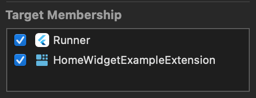
In this Intent you should import `home_widget` and call `HomeWidgetBackgroundWorker.run(url: url, appGroup: appGroup!)` in the perform method. `url` and `appGroup` can be either hardcoded or set as parameters from the Widget
```swift
import AppIntents
import Flutter
import Foundation
import home_widget
@available(iOS 16, *)
public struct BackgroundIntent: AppIntent {
static public var title: LocalizedStringResource = "HomeWidget Background Intent"
@Parameter(title: "Widget URI")
var url: URL?
@Parameter(title: "AppGroup")
var appGroup: String?
public init() {}
public init(url: URL?, appGroup: String?) {
self.url = url
self.appGroup = appGroup
}
public func perform() async throws -> some IntentResult {
await HomeWidgetBackgroundWorker.run(url: url, appGroup: appGroup!)
return .result()
}
}
```
3. Add a Button to your Widget. This Button might be encapsulated by a Version check. Pass in an instance of the `AppIntent` created in the previous step
```swift
Button(
intent: BackgroundIntent(
url: URL(string: "homeWidgetExample://titleClicked"), appGroup: widgetGroupId)
) {
Text(entry.title).bold().font( /*@START_MENU_TOKEN@*/.title /*@END_MENU_TOKEN@*/)
}.buttonStyle(.plain)
```
4. With the current setup the Widget is now Interactive as long as the App is still in the background. If you want to have the Widget be able to wake the App up you need to add the following to your `AppIntent` file
```swift
@available(iOS 16, *)
@available(iOSApplicationExtension, unavailable)
extension BackgroundIntent: ForegroundContinuableIntent {}
```
This code tells the system to always perform the Intent in the App and not in a process attached to the Widget. Note however that this will start your Flutter App using the normal main entrypoint meaning your full app might be run in the background. To counter this you should add checks in the very first Widget you build inside `runApp` to only perform necessary calls/setups while the App is launched in the background
## Android Setup
1. Add the necessary Receiver to your `AndroidManifest.xml` file
```xml
```
2. Create a custom Action
```kotlin
class InteractiveAction : ActionCallback {
override suspend fun onAction(context: Context, glanceId: GlanceId, parameters: ActionParameters) {
val backgroundIntent = HomeWidgetBackgroundIntent.getBroadcast(context, Uri.parse("homeWidgetExample://titleClicked"))
backgroundIntent.send()
}
}
```
3. Add the Action as a modifier to a view
```kotlin
Text(
title,
style = TextStyle(fontSize = 36.sp, fontWeight = FontWeight.Bold),
modifier = GlanceModifier.clickable(onClick = actionRunCallback()),
)
```
```xml
```
## Example Blog Article
A more in depth guide on how to build Interactive Widgets can be found [here](https://medium.com/@ABausG/83cb0706a417)
## Flutter Setup
1. Write a **static** function that takes a Uri as an argument. This will get called when a user clicks on the View
```dart
@pragma("vm:entry-point")
FutureOr backgroundCallback(Uri? data) async {
// do something with data
...
}
```
`@pragma('vm:entry-point')` must be placed above the `callback` function to avoid tree shaking in release mode.
2. Register the callback function by calling
```dart
HomeWidget.registerInteractivityCallback(backgroundCallback);
```
## iOS Setup
### CocoaPods
If you manage your iOS dependencies with CocoaPods, adjust your Podfile to add `home_widget` as a dependency to your WidgetExtension:
```rb
target 'YourWidgetExtension' do
use_frameworks!
use_modular_headers!
pod 'home_widget', :path => '.symlinks/plugins/home_widget/ios'
end
```
### Swift Package Manager
If you integrate plugins with Swift Package Manager, make sure your WidgetExtension links against the generated Flutter plugin package:
1. Open your Flutter project's `Runner.xcworkspace` in Xcode and select your WidgetExtension target.
2. On the `General` tab, locate the `Frameworks and Libraries` section and click the `+` button.

3. In the picker that appears, choose `FlutterGeneratedPluginSwiftPackage` and confirm. If it is not available you need to run `flutter pub get`

Once the dependency is present in your widget target, continue with the shared setup steps below.
### Common Steps
1. To be able to use plugins with the Background Callback add this to your AppDelegate's `application` function
```swift
if #available(iOS 17, *) {
HomeWidgetBackgroundWorker.setPluginRegistrantCallback { registry in
GeneratedPluginRegistrant.register(with: registry)
}
}
```
2. Create a custom `AppIntent` in your App Target (Runner) and make sure to select both your App and your WidgetExtension in the Target Membership panel

In this Intent you should import `home_widget` and call `HomeWidgetBackgroundWorker.run(url: url, appGroup: appGroup!)` in the perform method. `url` and `appGroup` can be either hardcoded or set as parameters from the Widget
```swift
import AppIntents
import Flutter
import Foundation
import home_widget
@available(iOS 16, *)
public struct BackgroundIntent: AppIntent {
static public var title: LocalizedStringResource = "HomeWidget Background Intent"
@Parameter(title: "Widget URI")
var url: URL?
@Parameter(title: "AppGroup")
var appGroup: String?
public init() {}
public init(url: URL?, appGroup: String?) {
self.url = url
self.appGroup = appGroup
}
public func perform() async throws -> some IntentResult {
await HomeWidgetBackgroundWorker.run(url: url, appGroup: appGroup!)
return .result()
}
}
```
3. Add a Button to your Widget. This Button might be encapsulated by a Version check. Pass in an instance of the `AppIntent` created in the previous step
```swift
Button(
intent: BackgroundIntent(
url: URL(string: "homeWidgetExample://titleClicked"), appGroup: widgetGroupId)
) {
Text(entry.title).bold().font( /*@START_MENU_TOKEN@*/.title /*@END_MENU_TOKEN@*/)
}.buttonStyle(.plain)
```
4. With the current setup the Widget is now Interactive as long as the App is still in the background. If you want to have the Widget be able to wake the App up you need to add the following to your `AppIntent` file
```swift
@available(iOS 16, *)
@available(iOSApplicationExtension, unavailable)
extension BackgroundIntent: ForegroundContinuableIntent {}
```
This code tells the system to always perform the Intent in the App and not in a process attached to the Widget. Note however that this will start your Flutter App using the normal main entrypoint meaning your full app might be run in the background. To counter this you should add checks in the very first Widget you build inside `runApp` to only perform necessary calls/setups while the App is launched in the background
## Android Setup
1. Add the necessary Receiver to your `AndroidManifest.xml` file
```xml
```
2. Create a custom Action
```kotlin
class InteractiveAction : ActionCallback {
override suspend fun onAction(context: Context, glanceId: GlanceId, parameters: ActionParameters) {
val backgroundIntent = HomeWidgetBackgroundIntent.getBroadcast(context, Uri.parse("homeWidgetExample://titleClicked"))
backgroundIntent.send()
}
}
```
3. Add the Action as a modifier to a view
```kotlin
Text(
title,
style = TextStyle(fontSize = 36.sp, fontWeight = FontWeight.Bold),
modifier = GlanceModifier.clickable(onClick = actionRunCallback()),
)
```
```xml
```
## Example Blog Article
A more in depth guide on how to build Interactive Widgets can be found [here](https://medium.com/@ABausG/83cb0706a417)